Android SSL Pinning Bypass with Burp Suite
- Android Pentest Lab Build
- Android SSL Pinning Bypass with Burp Suite
- Frida Method Hooking for Android App Analysis
- Hooking Native Libraries with Frida Interceptor
- From APK to Source: Complete Android Reverse Engineering Workflow
This post is a follow-up to my Android Pentest Lab Build where we set up an emulated Android device. Now we’ll put that lab to use by intercepting HTTPS traffic from Android apps.
If you’ve tried to proxy app traffic through Burp Suite before, you’ve probably run into SSL pinning. The app just refuses to connect or throws SSL errors everywhere. This is because modern apps embed the expected server certificate and reject anything else — including Burp’s CA. Great for security, annoying for us.
Let’s break it.
What You’ll Need
Before we begin, make sure you have:
- Android emulator from the previous post
- Burp Suite installed
- ADB working and in your PATH
- Frida (
pip install frida-tools)
Setting Up Burp
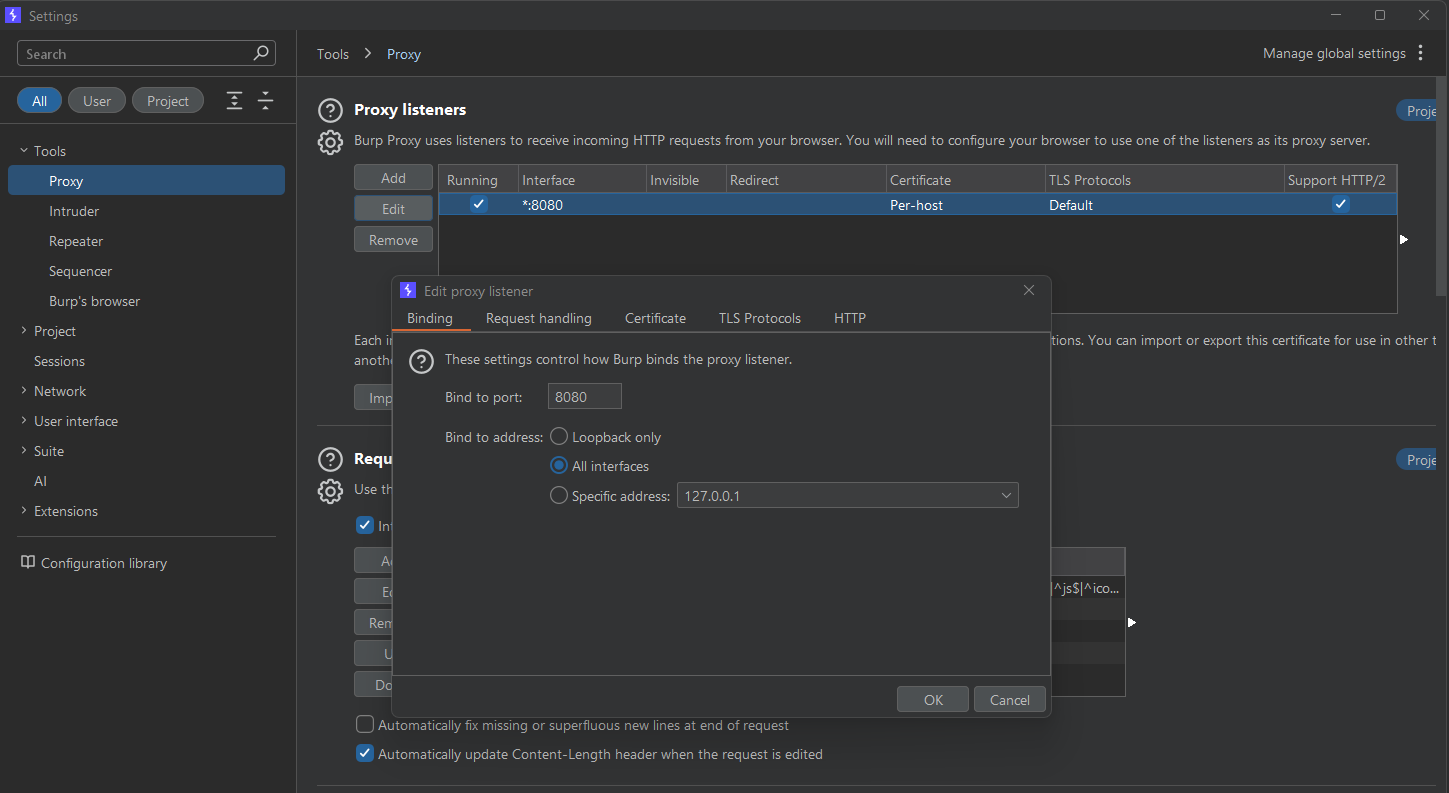
First we need Burp to listen on all interfaces so the emulator can reach it. Go to Proxy > Options and edit the listener. Set it to bind to “All interfaces” on port 8080.
Exporting the CA Certificate
We need to install Burp’s CA certificate on the Android device. In Burp, go to Proxy > Options and click Import / export CA certificate. Select Certificate in DER format and save it as burp-ca.der.
Now we need to convert it to a format Android expects:
openssl x509 -inform DER -in burp-ca.der -out burp-ca.pem
hash=$(openssl x509 -inform PEM -subject_hash_old -in burp-ca.pem | head -1)
mv burp-ca.pem ${hash}.0
Installing as a System Certificate
Here’s where it gets tricky. Android 7 and above don’t trust user-installed certificates for apps. We need to install it as a system certificate which requires root access.
Start your emulator with a writable system partition:
emulator -avd Pixel_API_25 -writable-system
Then push the certificate to the system store:
adb root
adb remount
adb push ${hash}.0 /system/etc/security/cacerts/
adb shell chmod 644 /system/etc/security/cacerts/${hash}.0
adb reboot
After reboot, you can verify the certificate shows up in Settings > Security > Trusted credentials > System.
Configuring the Proxy
Now we need to tell Android to route traffic through Burp:
adb shell settings put global http_proxy $(hostname -I | awk '{print $1}'):8080
You can also do this manually in Settings > Wi-Fi by long pressing your network and modifying the proxy settings.
At this point browser traffic should flow through Burp. But apps with SSL pinning will still fail. Time to bring out the big guns.
Setting Up Frida
Download the Frida server for your emulator’s architecture. Most emulators are x86 or x86_64:
adb shell getprop ro.product.cpu.abi

wget https://github.com/frida/frida/releases/download/16.1.4/frida-server-16.1.4-android-x86.xz
unxz frida-server-16.1.4-android-x86.xz
Push it to the device and run it:
adb push frida-server-16.1.4-android-x86 /data/local/tmp/frida-server
adb shell chmod 755 /data/local/tmp/frida-server
adb shell /data/local/tmp/frida-server &
Verify Frida can see the device:
frida-ps -U
You should see a list of running processes.
Bypassing SSL Pinning
This is the easy part. Objection is a toolkit built on Frida that makes SSL pinning bypass trivial.
pip install objection
Find your target app’s package name:
frida-ps -Ua
Launch it with SSL pinning disabled:
objection -g com.example.targetapp explore
Once inside the objection shell just run:
android sslpinning disable
That’s it. Traffic should now flow through Burp without any SSL errors.
Using a Frida Script Instead
If you prefer doing things manually, save this as ssl-bypass.js:
Java.perform(function() {
    var TrustManagerImpl = Java.use('com.android.org.conscrypt.TrustManagerImpl');
    TrustManagerImpl.verifyChain.implementation = function(untrustedChain, trustAnchorChain, host, clientAuth, ocspData, tlsSctData) {
        console.log('[+] Bypassing SSL Pinning for: ' + host);
        return untrustedChain;
    };
});
Run it with:
frida -U -f com.example.targetapp -l ssl-bypass.js --no-pause
Troubleshooting
Some common issues I’ve run into:
- App crashes on launch with Frida — Might have Frida detection. Try using an older version or renaming the frida-server binary.
- “Unable to connect to proxy” — Double check that Burp is listening on all interfaces and that you have the right IP in your proxy settings. It should be your host machine’s IP, not localhost.
- Certificate not trusted — Make sure you installed it as a system cert, not a user cert. You need the
-writable-systemflag when launching the emulator.
What’s Next
With traffic flowing through Burp you can start analyzing API endpoints and looking for vulnerabilities. The usual suspects I check for:
- Broken authentication and session management
- IDOR (Insecure Direct Object References)
- Sensitive data in API responses
- Hardcoded secrets in requests
- Missing rate limiting
In my next post I’ll cover using Frida to hook specific methods and extract secrets from running apps.
More to come!
If you enjoyed this post please consider subscribing to the feed!